>
Showing posts with label password manager. Show all posts

KeePass Password Safe Takes Trouble Out of Password Management


Looking for a free password manager? In this age of technology, you need a password to do just about anything on your own computer. You have your Windows passwords, a few e-mail passwords, three or four IM accounts with passwords, and that’s just to start your day. Who can keep track of all those different usernames and passwords? KeePass, that’s who.
KeePass Password Safe software is the latest and greatest password manager available for download today. KeePass is an user friendly, open source program that keeps all of your passwords safe and sound, in one place and with maximum encryption. If you have any interest at all in online security – and you should be very interested –you need to download KeePass today.

What would happen if someone got a hold of that one password you use over and over again for all of your online accounts? You probably don’t want to even think about it. Download KeePass and you’ll never have to!
KeePass allows you to stop using the same password, because KeePass comes with a super powerful password generator that creates your passwords for you every time you need one. And your KeePass passwords are safer than anything you could make up yourself.
With KeePass, you only have to remember one master password to access your entire collection of passwords. Or you can have KeePass automatically generate random data to create a “master key” or key file that you could insert for access to your passwords. Your master password and key file are both protected by AES and Twofish, the two best encryption algorithms available. This encryption doesn’t just protect your passwords either. It safeguards your usernames and other files as well.

KeePass is portable. You can install it on your USB drive, and carry your password safe with you at all times.
KeePass has an import and export feature, with which you can easily import data from old password managers like Password Keeper or Password Agent, and KeePass has plugins to support other file formats. KeePass has other efficient features like auto-type and global hot keys, and for additional ease of use, KeePass has a drag and drop feature that lets you move all fields, including the username, password, URL and notes, into other windows.

KeePass securely uses Windows clipboard. A simple double-click on the desired field in your password list will quickly transfer the data to your clipboard. For added security, KeePass automatically clears the clipboard after pasting and only allows the paste feature to be used once.
KeePass is a safe for your passwords – all of them. Usernames and URLs too.

Store and Remember Your Passwords Locally with Password Safe


There are too many passwords to remember these days – system login passwords, email account passwords, bank accounts password, social bookmarking passwords and more. If you understand the risks, writing all those passwords in a piece of paper is not a very brilliant decision to solve this.
The other problem is that we tend to use the same passwords for multiple different accounts, making it simpler for us to retrieve it when the need arise. But wait, just imagine the damage it will cause if somebody knows the single, same, insecure password of yours.
To overcome all these problems, I suggest that you try “Password Safe“, a freeware that helps to remember and store all your passwords locally, in secure databases encrypted with the TwoFish algorithm.
Password Safe lets you create one or multiple encrypted password database to save all your passwords. To access these databases, first you need to choose a master password. This is the single most important step of Password Safe. Make sure you key-in a hard to guess master password that you can remember easily!
Think of this as the front door key to your house – you don’t want to install a cheap lock for your front door, do you? Once this is done, you can enter all your usernames and associated passwords with ease from Password Safe’s interface.
enter-master-password-to-open-password-safe-screenshot

Password Safe Features

Password Safe is the brain child of Bruce Schenier, one the leading gurus in thecomputer security industry. This leads to these wonderful features built in:
  • Password groups/categories – I use this to differentiate my email password entries from my social bookmarking entries etc.
sample-password-safe-entries-inside-categories
  • Multiple encrypted database – Create different database for each group of passwords for higher security.
  • Password Generator – If you don’t want to remember some mind boggling password combination, Password Safe takes all the hard work by generating and remembering it altogether.
sample-password-to-remember-entry-in-password-safe
  • Autotype – Supply URL’s used for each password and you can login to your accounts without the need to type a password. This feature is also available from the system tray menu that can be activated with a right click. (Cool!)
  • Double click entry for username/password copy – If AutoType fails, you can double click an entry to have its password copied to the clipboard.
  • USB drive support – Install Password Safe inside a thumb drive to bring your passwords anywhere for maximum portability. Do choose the “Green” installation type for this to work.
  • Password Policy – To have Password Safe generate the most secure password possible, define your password policy from the Manage -> Options menu.
  • Password backup support – Essential feature for those who are afraid to lose their password’s databases.
password-safe-define-your-password-policy-screenshot
So here you are now with three quick options – one is to remember your passwords inside a sometimes forgetful mind, two is to write them on a piece of paper and risk losing it, OR three, use Password Safe to generate, encrypt, store and retrieve all of your passwords locally in multiple, portable databases. Clearly, Password Safe is the best choice, and I believe you will agree with me. Try it today!
Actually, there is one other option also and that’s to use an online third party service to store all of your passwords so that you can retrieve them anytime from any computer. I wrote about the best online password manager a while back called PassPack. Storing your passwords online allows more flexibility, but some people feel their passwords are not as safe since they are stored on the Internet.

Billeo Password Manager


Download:Billeo
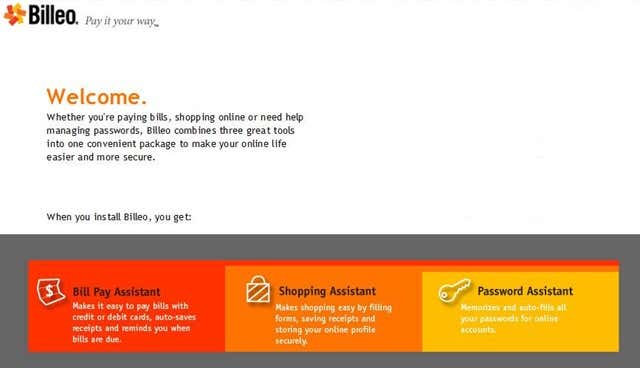
Having to remember multiple passwords for different websites is too much of a chore. Although Windows based computers have a way of remembering passwords for you, sometimes you require a little extra. Most internet users desire password managersautomatic form fillers, and a bill payment service. Instead of paying for each one of these components separately, it would be better to find anapplication that incorporates all of these features totally free.

4

Billeo is one of the best applications I have used in a long time. Not only does it give me access to three important features, but it is completely free of charge. ThePassword Assistant automatically saves your passwords for internet sites and will fill in the information each time you visit the site. You won’t have to kick yourself because you forgot your password or username. As soon as you visit the web page, the information will pop into the needed fields. This sensitive information will be securely stored on your computer. You will be able to easily update changes without going through a complicated process.

2

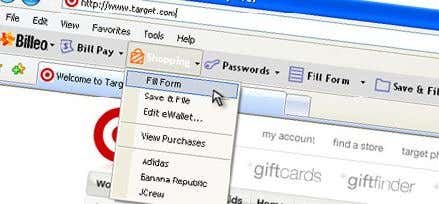
The Shopping Assistant comes in handy when you need to fill out online forms. Instead of having to type your personal information into each blank field, it will quickly input it for you. Shopping online will become a quick and enjoyable experience with this feature. After making your desired purchases, you will be able to conveniently save the transaction confirmation like a receipt. Saving your purchase information is an easy task with the Shopping Assistant. Organizing your financial records won’t be a problem with this useful function.

6

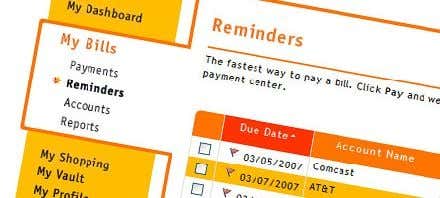
The Bill Pay Assistant is the perfect way to keep all of your monthly bills paid on time. Instead of having to write a check and then mailing a payment, you can quickly send it from this online bill payment system. Setting up your accounts for online bill payments will keep you from incurring late payments and fees. Not only can you make payments, but you can also set up easy bill reminders.

5

Billeo is the perfect tool for internet users that need to organize their passwords,finances, and online purchases. It is a free tool with major benefits to anyone that uses it. Just download the application and it appears in the toolbar for InternetExplorer or Mozilla Firefox. After just a few uses, you will wonder how you ever survived without using it. Instead of cluttering your computer with multiple applications, use this all in one application to fulfill your needs. Enjoy!

Secure Data Organizer – Free password manager

Secure Data Organizer is a free, professional grade password management program to securely organize and store your sensitive information.

With Secure Data Organizer you can:
* Securely store and organize and your usernames, passwords and other personal data
* Create website associations so your personal data appears when a specified website is detected in your web browser
* Drag and drop personal data (such as a login or password) to a web browser field, eliminating the need to type in or remember your information
* Measure your password strength using the password strength meter
* Generate strong passwords using the built-in password generator
* Instantly search all of your encrypted data
* Export your Secure Data Records to a mobile device or PDA so you can access them on-the-go
* Export/Import your Secure Data Records so that you can access them at a separate location, for example, at the office.

Download Now!
Secure Data Organizer v2.1.133 for Windows XP / Vista

Alternate Download Links:
Download from Download.com
Download from Tucows
Download from Windows Marketplace
Download from Softpedia

Free Downloads


Additional features of Secure Data Organizer are:
* Integration with Internet Explorer 6, Internet Explorer 7, and Firefox.
* Open, published, and community-accepted encryption techniques
* Mobile version to access Secure Data Records on the go (Pocket PC and Smartphone)
* Import/Export to another location (e.g., the office)
* Advanced search capability, including search in encrypted data
* Open file format (XML)
* Highly polished and customizable User Interface
* Supports multiple users under one Windows XP login (e.g., for family use)
* Built-in customizable password generator
* Runs on Windows XP and Windows Vista, as well as on both 32-bit and 64-bit platforms
* Currently in testing at Microsoft for �Works on Windows Vista� compliance
* Of course, no ads, no spyware, or anything along those lines
* FREE


Pocket Secure Data Organizer is the Pocket PC / Windows Mobile version of Secure Data Organizer. You can use it to view your sensitive information on-the-go.

With Pocket Secure Data Organizer you can:
* View your Secure Data Records on-the-go on your Windows Mobile Pocket PC or Smartphone
* Rest easy knowing that your Secure Data Records are encrypted with maximum strength encryption algorithms, so that if your device is ever lost or stolen, your sensitive information will be safe
* Supports Pocket PC 2002, Windows Mobile 2003, and Windows Mobile 2005. A version for smartphone is coming soon!
* To install, copy the .CAB file (See download links below) onto your mobile device, browse to it using File Explorer, and then tap it. Pocket Secure Data Organizer will be automatically installed.
* If you are using Pocket PC 2002, the Microsoft .NET Compact Framework v1.0 is required and can be downloaded here.

Download Now!
Pocket Secure Data Organizer v2.1.271 for Pocket PC 2002
Pocket Secure Data Organizer v2.1.271 for Windows Mobile 2003 and 2005

Alternate Download Links:
Download from Handango
Download from Softpedia