>
Showing posts with label File compression utilities. Show all posts

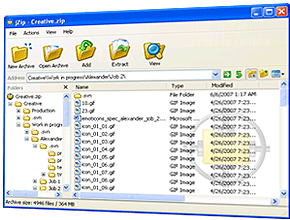
Jzip- File compression


 few days ago I wrote a post about zip-7- an open source compression utility. Today I will talk about another free compression utility for Windows which uses the 7-zip compression engine, but in a different way.


Jzip supports archive formats such as ZIP ,RAR, 7Z,ISO, TAR and GZIP. It is fully compatible with archives created by other compression utilities such as WinZip, WinRar and Zip-7. Some of the notable features of Jzip are:
“¢ Create Zip compatible files
“¢ Unzip any Zip file archives
“¢ Supports other archive formats like TAR, GZip and RAR
“¢ Improved compression ratio
“¢ Fast compression engine


if jzip uses the Zip-7 compression engine, then what is the difference you might ask, Here is what the developers say is different in Jzip:
We created jZip for users who feel they want the same kind of compression capabilities offered by 7-zip but in an easier more streamlined user interface. We have spent significant time designing a sleek user interface that lets you to easily use the underlying compression engine.
jZip is about offering a robust compression and archiving application that’s easy to use. Something similar to WinZip, but totally FREE. We are currently working on the next jZip version that will offer additional features that will make it standout, not just as a free application, but also as the best one around.
I think the best way to find out which of the applications work best for you is to try them both, download jZip here visit jzip homepage to learn more about it http://jzip.com/

TugZip, an alternative to WinZip


Looking for free zip/compression software? ZIP, 7Z, CAB, and GZIP; these are just a short list of compressed file formats you may have encountered before. What is a compressed file you ask? On a basic level, a compressed file is one that has some degree of unused space taken out for purposes of shrinking the actual size of a file. This is especially helpful for programs that create excess unused space with data files.
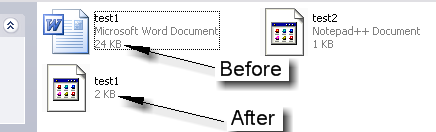
As an example, if you create a new Microsoft Word document, and type only a few words on it (using the words “This and that”) and save it as a Word DOC file; it is 24K (kilobytes) in size. Using a basic editor, like Notepad, you type the same words, save the file as a TXT file; and the size is only 1K. The Word document you just made is 24 times the size of the simple text file. Granted, the Word document starts at 24K, it does not grow exponentially. But this will help to illustrate a point.
tugzip1
Let’s say that our goal is to save as much hard drive space as possible. We will want to shrink the test1.doc file down some to accomplish this. To assist us in this matter, we want an easy to use compression utility. WinZip would work fine, but perhaps you want something along the lines of a zero cost, freeware solution. How about a program called TugZip?
Looking at the two files in front of us, the text document is small enough, so turn the attention to the Word document. Assuming we have TugZip installed, all one has to do is right-click on test1.doc, then click on Add to: test1.zip.

tugzip2
Now our new test1.zip file contains the original data, but without the unused space. The file has effectively been reduced to approximately 8% of the original size. We can now delete the original test1.doc file since we have a “zipped” copy.

tugzip3
While WinZip might have a nicer looking graphical interface, TugZip does the same things without lightening your wallet. TugZip can do two things that would normally cost someone $80 with WinZip. The WinZip basic version is $30, and the extra tool to create self-extracting compression files (someone else can open them with the need for WinZip or TugZip), runs $50.
Truth be told, TugZip has several features, and I could go on for hours; but I will highlight what I believe are the big two: Compression and Extraction, and making Self-Extracting Files. First up to bat, the Compression and Extraction features.
TugZip can create and extract from a variety of formats. Of course, the most common one, .ZIP, it handles very well. It can compress files and folders to .ZIP, .SQX, .LZH, .7Z (heavy compression, takes a while, grab some coffee), .BZ2, and .TAR (Linux tarball) file formats, along with a few others. Linux users may recognize the .BZ2 and .TAR formats.
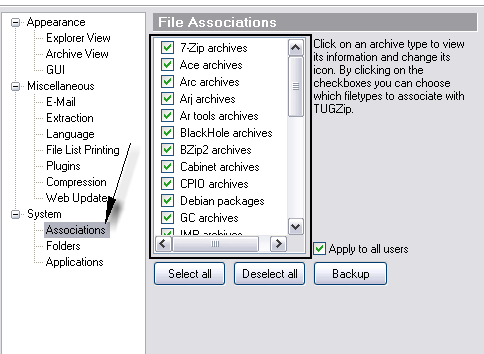
On the extraction side of the equation, TugZip recognizes a wider list of file formats that it can extract from. These include .GZ (GZIP), .JAR (Java Archive format), .RPM (Red Hat Package Manager), as well as those listed above in the creation section. Within TugZip, should you click on Options, Configuration, then locate the Associations heading, you can find the list of everything TugZip supports.
tugzip4
Though WinZip requires you make a separate purchase for its self-extracting add-on utility, TugZip has this tool bundled in with the installation file. From the TugZip menu, under Program Files, or All Programs, you will find the TUGZip Self-Extractor. This is the starting point for creating a compressed file that can be opened on its own.

tugzip5
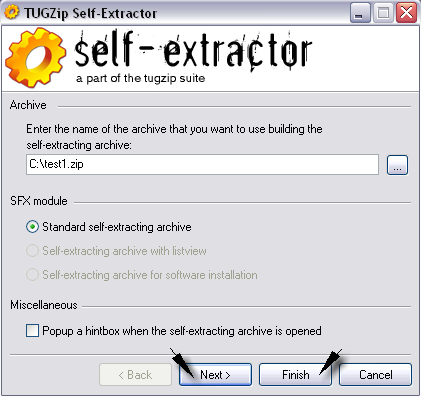
To begin, you are asked to choose a compressed file that you wish to convert to a self-extracting file. For this example, we will use the test1.zip created earlier. TugZip typically chooses the Standard option at this point. Right now, you could click on Finish, and you have your new file; however, you can also click Next for a couple more options.

tugzip6
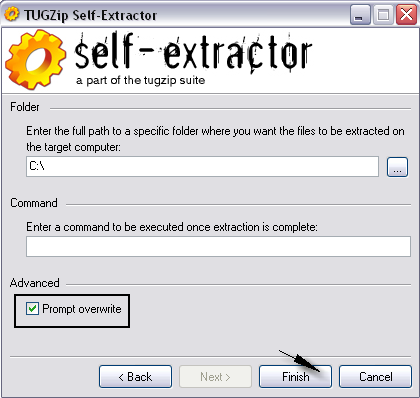
In the next screen, you can specify where the compressed file will go when the file is opened. This can be handy for moving large groups of similar files between computers on a network, when you want the files to go to the same location each time. This screen also makes available an option to run a command-line script after file extraction, as well as the ability to ask the user if they want to overwrite current files with copies from the self-extracting archive file (Prompt overwrite).
Once you click Finish, you will have a new file, with the same name, and an .EXE extension. For the sake of argument, I would recommend using the .ZIP format, or others, for sending compressed files through email. Every Anti-Spam and Email Anti-Virus tool that I know of will eradicate .EXE files when spotted; if it does not ask you first.
TugZip can also create very large compressed files as well as password encrypt file and folders. It is lightweight, and will not run your computer into the ground, unless you are constantly compressing DVD’s worth of data. Without a doubt, it is a very handy free software tool to have around.
PeaZip – Free File Compression Software


If you are familiar with file compression utilities, you may have heard or have usedWinZip before. For the uninitiated, file compression software is used to group a collection of files into one small file, making it easier and faster to distribute them to other computers.
However, do you realize that WinZip is actually not free software? Once the 45 evaluation period ends, you are required to buy the full license to use the full product. If you are looking to replace WinZip with totally free file compression software, give PeaZip a try.
PeaZip is an open source tool that you can use to archive, compress and uncompress your files quickly, free of charge. In PeaZip, you will often switch between two interfaces: the File Browser where you can browse and add files that you want to archive and the File Archive interface where you actually create your compressed file archive using various available options.
The interface is pretty intuitive and there is a good usage manual on PeaZip’s website so don’t you worry about not being able to use it optimally.
peazip-winzip-alternative-001

PeaZip Features


  • Free and open source so you can expect the product to be improved from time to time by the community.


  • Able to create compressed file archives in multiple formats – 7Z, ARC, BZ2, GZ, PAQ/LPAQ, PEA, QUAD, TAR, UPX, ZIP.


  • Able to open / uncompress file archives in various formats that includes the above plus ACE, ARJ, ISO, RAR, RPM and more.


peazip-winzip-alternative-006


  • Able to handle multiple compressed file archives simultaneously.


  • Drag and drop files to create an archive; Windows only. You can also add new files to a previously created archive in a snap.


peazip-winzip-alternative-003


  • Exclusion and inclusion file filter to create archives based on particular file extensions.


  • Multiplatform and portable – runs on Windows and UNIX. There is even a portable standalone version so you can carry this free file compression software with your USB thumb drive. PeaZip is Windows Vista ready too!


  • Secure your files with passwords and various file encryption algorithm based on the archive format that you choose. You can opt to use the random password generator or keyfiles for maximum, strong file protection.


  • ARC file compression format is available to protect your file archives from corruption by using “recovery records” technology.


  • Windows context menu integration for quick archive creation via “Send to” menu.


peazip-winzip-alternative-007


  • Test all” button allows you to quick check a file archive if it is corrupt or not.


  • File splitter and joiner tool to distribute big archives into multiple storage medias such as CDROM or floppy disks.


  • Checksum and hash tools for quick archive integrity check.


  • Quick and secure file deletion to protect your file privacy.


  • Detailed log files for each compression / decompression tasks.


Overall, PeaZip is a free file compression software with loads of useful features that is impossible to list it all here. With huge amount of supported file formats plus ease of use, you will never need to install WinZip ever again. Try PeaZip today!