>
Showing posts with label media players. Show all posts

Find and download audio and video codecs to play movies


Ever had a movie where you could only hear the sound and there were no video? Or only video and no sound?
That's almost certainly a codec missing! CodecInstaller is here to help you understand which codec you need and to let you install it in minutes.

CodecInstaller is a Windows program that detects the Audio and Video codecs installed on your system, analyzes files to understand which codecs they require and suggests you to install them.


Have you ever run across the situation where you popped in a DVD and you could only hear the sound, but no video? Or maybe had the video, but no sound? Well, you’re probably missing the correct audio or video codec that is needed to correctly play the DVD.
CodecInstaller is a cool freeware application that will help you determine which audio and video codecs you have installed on your computer and which ones you need to download in order to play your media.
Once installed, CodecInstaller will display a list of all audio and video codecs currently installed on your system. The best part of the software, however, is that it can also analyze your media files and download the necessary codecs from the author’s website automatically! No need to visit a bunch of sites trying to downloaddivX codecs, xvid codecs, the k lite codec pack, etc manually.
video codecs
Clicking on Installed Codecs will give you a list of all currently installed codecs along with the file name, company, version, and driver path as shown below:
installed codecs
Clicking on Analyze File and pointing to a media file will tell you which audio and video codecs are needed for playback. It may not always work, but it’ll try it’s best. Once if analyzes the file, you’ll see question mark buttons that you can click on to download the correct video or audio codec. You can pick them easily from a list which includes a description and downloads directly from the author site, not a third party site.
audio codecs
You can also remove codecs if you need to, especially if two codecs are conflicting with each other or if you want to re-install a codec.
Overall, it’s a great program for quickly finding and analyzing the codecs installed on your system and is very useful for anyone who watches a lot of movies in different formats, especially foreign DVDs, VCDs, SVCDs, etc. Definitely worth checking out! Enjoy! Source FreewareGenius

ALSong (displays lyrics to songs)


ALSong Live Song Lyrics Music MP3 PlayerGet ALSong at Cnet.com


ALSong is one of the better media player utilities from ESTsoft.  I was particularly intrigued by it because it supports real time lyric displays as your songs play.  The minimum system requirements are a mere Windows 2000/XP/Vista with a CPU 333MHz + and RAM 64 MB + of RAM.  This media player plays mp3 music and has an integrated web radio, which you can use to play songs from a broadcasting radio on the web


More than just another MP3 Player, ALSong is yourLIVE SONG LYRICS source.
Bring your music to life with:


SCREEN SHOTS and more about ALSong's many musical features...

ALSong v1.9 - Live Music & Lyrics Player Download the ALSong Live Lyrics MP3 PlayerDownload ALSong today to hear your music, and READ your music!

How do I Grab or capture still images or frames from a video or DVD


To install GOM Player on your computer, click one of the Free Download buttons below.
Free Download from cnet download.com   Free Download from brothersoft.com

System Requirements

  • Microsoft Windows 98SE, Me, 2000, XP, 2003, Vista or Windows 7
  • Intel-compatible CPU P3 or greater Minimum amount of RAM recommended by the operating system in use 20MB Hard Drive Space.
  • Some videos may require the newest version of DirectX or Windows Media Player.
  • Recommended settings may change according to different types of video files.
  • Modify 'Deadlock problem' occasionally happened when you shut down the player.
  • Improve Vorbis audio decoder performance.


Watching a DVD movie on your computer or a video you downloaded from yourdigital video camera and wish you could capture a particular frame or still imageto send to a friend or to set as your desktop background? By default, the only options you might have are to use PrintScreen or to use the CTRL + I shortcut in Windows Media Player 9 and 10.
Those methods are ok, but they are not really very accurate and starting with Windows Media Player 11, the CTRL + I method does not even work! Don’t worry though, there is another way to grab a video frame and convert it into a still image using some third party programs.
GOM player is a very useful audio and video media player that has many of the most popular codecs built into it. GOM Player includes many codecs (XviD, DivX, FLV1, AC3, OGG, MP4, H263 and more) so you can watch most videos without having to install separate codecs. GOM Player can also play broken AVI files or AVI files that have not been completely downloaded yet. So if you have an AVI file that you could only download a portion of, GOM player will allow you to view the downloaded part. Also, GOM player not only supports subtitles, but you can actually customize the margin, location, size, resolution, and font on the subtitles.
Another cool feature of GOM player is that it has a built in screen capture utilitythat you can use to capture still images of the video that you’re currently playing. There are also a couple of other programs that out there that let you do the same thing, but GOM player is cooler because it includes a Burst Capture feature that let’s you take continuous screenshots upto 999 still images!
gom media player
Once you have downloaded and installed GOM media player, you can capture frames of a video by clicking on the Control Panel icon at the bottom right (it’s the middle icon out of the three).
You can either click on Screen Capture to begin a capture with the default settings or you can click on Advanced Capture and configure them as you desire.
capture image
You can configure the destination directory for the still images, the image format (JPEG or BMP), the quality of the JPEG, the burst capture images (number of images you want to capture), and the but interval in seconds. You can also quickly set the current screen as you Windows background.
If you find that the video is a little too dark or too light, you can adjust the brightness and contrast before capturing your images.
GOM Player is an excellent media player with some really useful advanced features. Definitely worth checking out if you’re sick of the default DVD playing software that you get on your computer after buying it. Sonic MyDVD and Interwin DVD player suck badly if you ask me and GOM player is far better! Enjoy! Source DI

KMPlayer


KMPlayer is an excellent video and audio player which can play a large amount of formats such as VCD, DVD, AVI, MPEG-1/2/4, WMV, RealMedia, and QuickTime among others. It handles subtitles and allows you to capture screenshots.
You can set audio and video effects, slow down or increase playback speed, select parts of a video as favorites, and many more. KMPlayer is completely customizable thanks to a wide selection of skins and color schemes, and the configuration options are extensive. KMPlayer is a flexible, free and practical media player.


OS requirements for KMPlayer:


There are many media players out there that you can download and use but only a few offers excellent features. There are few common problems that I have found over and over again with most media players – some need extra codecs to play a video file, some successfully play videos but lack audio quality and vice versa.
If you constantly experience these problems and are on a quest to find the ultimate, most versatile media player that plays both audio and video files, look no more – KMPlayer is an all in one media player that plays almost any media that you can wish for.
the-kmplayer-interface-screenshot
The KMPlayer is not to be confused with Linux’s KDE KMPlayer, which is totally a different media player. KMPlayer is built for Windows and can play various formatssuch as VCD, DVD, AVI, MKV, Ogg Theora, OGM, 3GP, MPEG-1/2/4, WMV, RealMedia, and QuickTime among others. The KMPlayer includes all essential decoders (codecs) for media playback – both audio and video so you don’t have to download separate codecs to play your media files.

KMPlayer Media Player Features

Being an all in one audio video player, KMPlayer offers tons of features such as:
  • Low memory usage- one of the most important aspect that I am looking for in a media player.
  • VCD and DVD playback.
kmplayer-open-vcd-or-dvd-options
  • Comes with internal decoders to play most video formats – DivX, XviD, Theora, WMV, MPEG-1, MPEG-2, MPEG-4, VP3, VP5, VP6, H263(+), H.264(AVC1), CYUY, ASV1/2, SVQ1/3, MSVIDC, Cinepak, MS MPEG4 V1/2/3, FFV1, VCR1, FLV1, MSRLE, QTRLE Huffyuv, Digital Video, Indeo3, MJPEG, MPNG SNOW, TSCC, Dirac, VC-1, RealVideo, SMC etc .
  • Supports DirectShow playback.
  • Comes with internal decoders to play most audio formats – AC3, DTS, LPCM, MP2, MP3, Vorbis, AAC, WMA, ALAC, AMR, QDM2, FLAC, TTA, IMA ADPCM, QCELP, EVRC, RealAudio etc.
  • Able to use the Real Networks engine to play Real media files.
  • Able to use the Quicktime engine to play Quicktime’s .mov media files.
  • Able to use some of WinAmp input, dsp, and visualization plugin .
  • Multiple choice of video renderers – Old Video Renderer, Overlay Mixer, VMR Windowed, VMR Renderless, DirecDraw RGB/Overlay, OpenGL, Direct3D (DX7, DX9) YUV/RGB, Null Uncompressed/Compressed), Haali’s Video Renderer .
kmplayer-advanced-video-controls
  • Audio processing support – built in DirectSound, basic audio processing (preamp, remove left/right channel, channel swap etc.), advanced video processor (equalizer, echo, pitch, normalizer, true bass, treble etc.)
kmplayer-various-audio-processing
  • Video subtitle with various processing support – font rendering, font effects, output method etc.
  • Skinnable interface – you can set KMPlayer to change skins for each media playback!
  • Plays incomplete / damage video files (skipping mode).
  • Ability to choose parts of a video as favorites . Cool!
  • View image files.
  • Plays Adobe Flash .swf files too!
  • Supports control from a multimedia keyboard.
  • Multiple language support.
Once you have downloaded KMPlayer and test it to your hearts content, you will notice that the KMPlayer can play almost any media – audio, video, image, flash files and more. What I really love about KMPlayer is that I don’t have to download separate codecs to play most of media files inside my computer, which saves me some future frustrations. Search no more and try KMPlayer – the all in one audio video player with excellent set of features for all digital media lovers out there.

VLC 1.0 media player


VLC has just came out from beta to its first major version.  Codenamed Goldeneye, version 1.0 is much worth checking out than the earlier beta versions.
The new release has more features like more responsive controls, frame-by-frame playback, on-the-fly recording for all media, and support for a wider range of codecs, decoders, encoders, and demuxers.  I was also able to play Real (rmvb) format using this player!
image
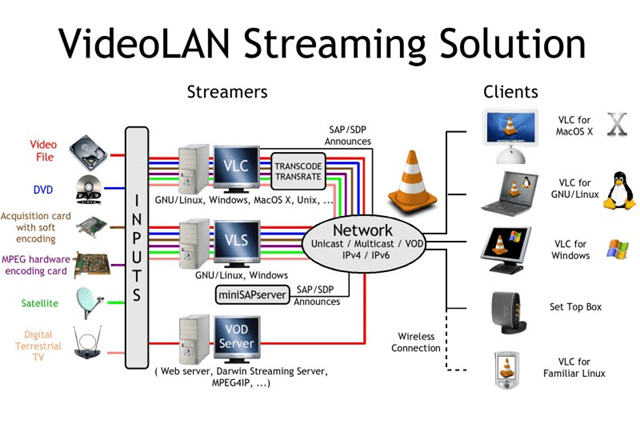
Another cool feature of VLC is its capability to stream media.  This means you can create your own http service from your own computer and share the URL to others.
Of course you will need to have the bandwidth for this so if you only have a dial-up connection – forget about streaming from your computer!   If you have a LAN then this should be OK for a LANcast where the http stream is fast.
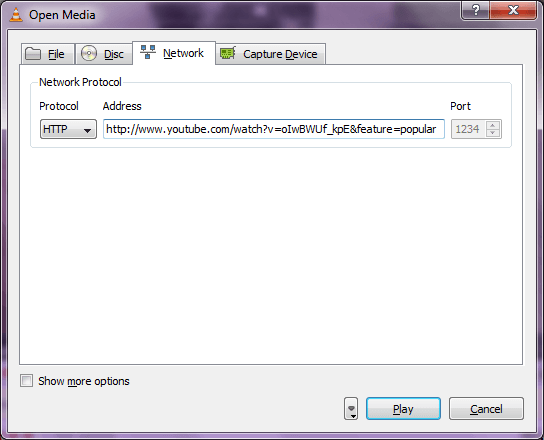
Since VLC is known to be able to handle streaming video then it is natural to assume that you can use this player to play URLs with streaming content.  You may test this functionality by pasting the URL on the Open Dialog window of VLC under the network tab:
image
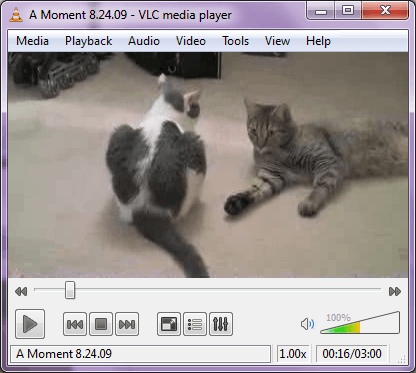
In the example above I entered a Youtube URL and it was able to play it like a normal media file.
image
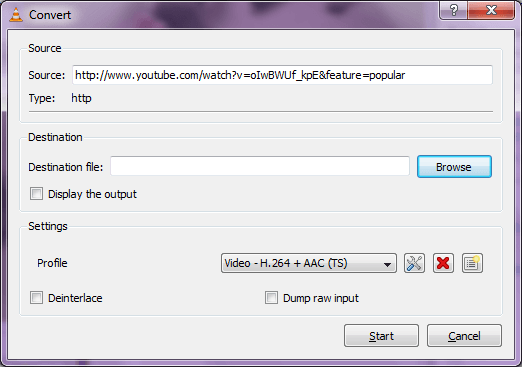
You can also use the Convert button to save a converted file of this streamed movie:
image
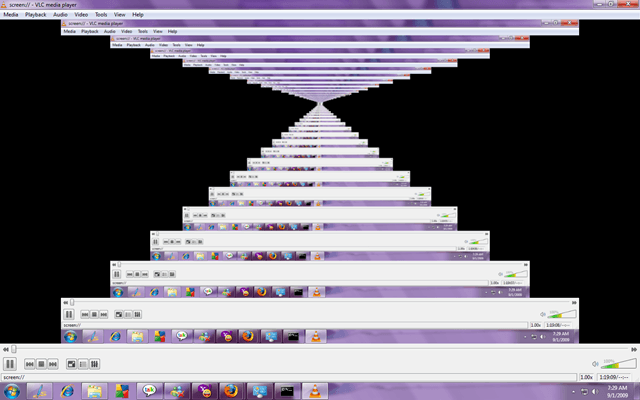
Here is a psychedelic VLC trick.  I call it the endless desktop show.  VLC has the capability to capture your desktop so it can stream it to the Network.
Somehow it seems to be on an infinite loop and if you don’t minimize VLC it will capture your desktop inside VLC endlessly.  You will end up with something like below:
image
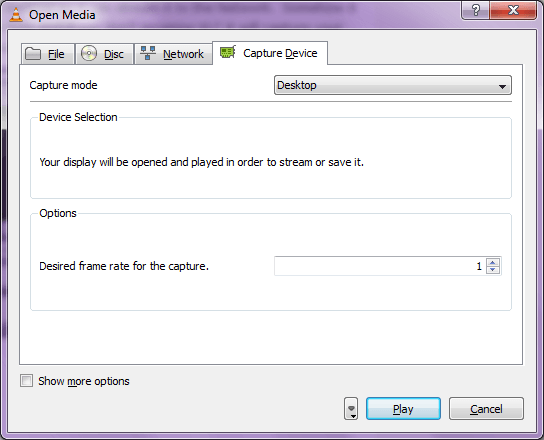
First click the Media Menu then choose Open Media.  Under the capture device tab choose desktop as the capture mode:
image
Click the Play button and you should see the endless desktop movie like I have above.

If you like VLC, please rate it on the Freshmeatversiontracker or AlternativeTo entries!

Download VLC

Binaries

Select your operating system to download VLC binaries:

GNU/Linux

Source and other operating systems

For the other operating systems supported, there are no precompiled binaries. You will have to get the source code for VLC and its required libraries and build them yourself: