>
Showing posts with label Tips. Show all posts

20 Great Google Secrets You've never seen

Google is clearly the best general-purpose search engine on the Web
But most people don't use it to its best advantage. Do you just plug in a keyword or two and hope for the best? That may be the quickest way to search, but with more than 3 billion pages in Google's index, it's still a struggle to pare results to a manageable number.

But Google is an remarkably powerful tool that can ease and enhance your Internet exploration. Google's search options go beyond simple keywords, the Web, and even its own programmers. Let's look at some of Google's lesser-known options.

Syntax Search Tricks

Using a special syntax is a way to tell Google that you want to restrict your searches to certain elements or characteristics of Web pages. Google has a fairly complete list of its syntax elements at

www.google.com/help/operators.html

. Here are some advanced operators that can help narrow down your search results.

Intitle: at the beginning of a query word or phrase (intitle:"Three Blind Mice") restricts your search results to just the titles of Web pages.

Intext: does the opposite of intitle:, searching only the body text, ignoring titles, links, and so forth. Intext: is perfect when what you're searching for might commonly appear in URLs. If you're looking for the term HTML, for example, and you don't want to get results such as

www.mysite.com/index.html

, you can enter intext:html.

Link: lets you see which pages are linking to your Web page or to another page you're interested in. For example, try typing in

link:http://www.pcmag.com

Try using site: (which restricts results to top-level domains) with intitle: to find certain types of pages. For example, get scholarly pages about Mark Twain by searching for intitle:"Mark Twain"site:edu. Experiment with mixing various elements; you'll develop several strategies for finding the stuff you want more effectively. The site: command is very helpful as an alternative to the mediocre search engines built into many sites.


Swiss Army Google

Google has a number of services that can help you accomplish tasks you may never have thought to use Google for. For example, the new calculator feature

(www.google.com/help/features.html#calculator)

lets you do both math and a variety of conversions from the search box. For extra fun, try the query "Answer to life the universe and everything."

Let Google help you figure out whether you've got the right spelling—and the right word—for your search. Enter a misspelled word or phrase into the query box (try "thre blund mise") and Google may suggest a proper spelling. This doesn't always succeed; it works best when the word you're searching for can be found in a dictionary. Once you search for a properly spelled word, look at the results page, which repeats your query. (If you're searching for "three blind mice," underneath the search window will appear a statement such as Searched the web for "three blind mice.") You'll discover that you can click on each word in your search phrase and get a definition from a dictionary.

Suppose you want to contact someone and don't have his phone number handy. Google can help you with that, too. Just enter a name, city, and state. (The city is optional, but you must enter a state.) If a phone number matches the listing, you'll see it at the top of the search results along with a map link to the address. If you'd rather restrict your results, use rphonebook: for residential listings or bphonebook: for business listings. If you'd rather use a search form for business phone listings, try Yellow Search

(www.buzztoolbox.com/google/yellowsearch.shtml).

Extended Googling

Google offers several services that give you a head start in focusing your search. Google Groups

(http://groups.google.com)

indexes literally millions of messages from decades of discussion on Usenet. Google even helps you with your shopping via two tools: Froogle
CODE
(http://froogle.google.com),

which indexes products from online stores, and Google Catalogs
CODE
(http://catalogs.google.com),

which features products from more 6,000 paper catalogs in a searchable index. And this only scratches the surface. You can get a complete list of Google's tools and services at

www.google.com/options/index.html

You're probably used to using Google in your browser. But have you ever thought of using Google outside your browser?

Google Alert

(www.googlealert.com)

monitors your search terms and e-mails you information about new additions to Google's Web index. (Google Alert is not affiliated with Google; it uses Google's Web services API to perform its searches.) If you're more interested in news stories than general Web content, check out the beta version of Google News Alerts

(www.google.com/newsalerts).

This service (which is affiliated with Google) will monitor up to 50 news queries per e-mail address and send you information about news stories that match your query. (Hint: Use the intitle: and source: syntax elements with Google News to limit the number of alerts you get.)

Google on the telephone? Yup. This service is brought to you by the folks at Google Labs

(http://labs.google.com),

a place for experimental Google ideas and features (which may come and go, so what's there at this writing might not be there when you decide to check it out). With Google Voice Search

(http://labs1.google.com/gvs.html),

you dial the Voice Search phone number, speak your keywords, and then click on the indicated link. Every time you say a new search term, the results page will refresh with your new query (you must have JavaScript enabled for this to work). Remember, this service is still in an experimental phase, so don't expect 100 percent success.

In 2002, Google released the Google API (application programming interface), a way for programmers to access Google's search engine results without violating the Google Terms of Service. A lot of people have created useful (and occasionally not-so-useful but interesting) applications not available from Google itself, such as Google Alert. For many applications, you'll need an API key, which is available free from
CODE
www.google.com/apis

. See the figures for two more examples, and visit

www.pcmag.com/solutions

for more.

Thanks to its many different search properties, Google goes far beyond a regular search engine. Give the tricks in this article a try. You'll be amazed at how many different ways Google can improve your Internet searching.

Online Extra: More Google Tips

Here are a few more clever ways to tweak your Google searches.

Search Within a Timeframe

Daterange: (start date–end date). You can restrict your searches to pages that were indexed within a certain time period. Daterange: searches by when Google indexed a page, not when the page itself was created. This operator can help you ensure that results will have fresh content (by using recent dates), or you can use it to avoid a topic's current-news blizzard and concentrate only on older results. Daterange: is actually more useful if you go elsewhere to take advantage of it, because daterange: requires Julian dates, not standard Gregorian dates. You can find converters on the Web (such as

CODE
http://aa.usno.navy.mil/data/docs/JulianDate.html

excl.gif No Active Links, Read the Rules - Edit by Ninja excl.gif

), but an easier way is to do a Google daterange: search by filling in a form at

www.researchbuzz.com/toolbox/goofresh.shtml or www.faganfinder.com/engines/google.shtml

. If one special syntax element is good, two must be better, right? Sometimes. Though some operators can't be mixed (you can't use the link: operator with anything else) many can be, quickly narrowing your results to a less overwhelming number.

More Google API Applications

Staggernation.com offers three tools based on the Google API. The Google API Web Search by Host (GAWSH) lists the Web hosts of the results for a given query

(www.staggernation.com/gawsh/).

When you click on the triangle next to each host, you get a list of results for that host. The Google API Relation Browsing Outliner (GARBO) is a little more complicated: You enter a URL and choose whether you want pages that related to the URL or linked to the URL

(www.staggernation.com/garbo/).

Click on the triangle next to an URL to get a list of pages linked or related to that particular URL. CapeMail is an e-mail search application that allows you to send an e-mail to google@capeclear.com with the text of your query in the subject line and get the first ten results for that query back. Maybe it's not something you'd do every day, but if your cell phone does e-mail and doesn't do Web browsing, this is a very handy address to know.

hacking password protected site

How To Hack Password Potected Sites


1There are many ways to defeat java-script protected web
sites. Some are very simplistic, such as hitting ctl-alt-del
when the password box is displayed, to simply turning off
java capability, which will dump you into t he default page.
You can try manually searching for other directories, by
typing the directory name into the url address box of your
browser, ie: you w ant access to www.target.com . Try typing
www.target.com/images .(almost ever y web site has an images
directory) This will put you into the images directo ry,
and give you a text list of all the images located there.
Often, the t itle of an image will give you a clue to the
name of another directory. ie: in www.target.com/images,
there is a .gif named gamestitle.gif . There is a g ood
chance then, that there is a 'games' directory on the site,
so you wou ld then type in www.target.com/games, and if it is
a valid directory, you aga in get a text listing of all thefiles available there.
For a more automated a pproach, use a program like WEB SNAKE
from anawave, or Web Wacker. These programs will create a
mirror image of an entire web site, showing all director ies,
or even mirror a complete server. They are indispensable for
locating hidden files and directories.
What do you do if you can't get past an openin g "Password
Required" box? First do an WHOIS Lookup for the site. In our
example, www.target.com . We find it's hosted by www.host.com
at 100.100.100. 1. We then go to 100.100.100.1, and then launch \
Web Snake, and mirror the e ntire server. Set Web Snake to NOT
download anything over about 20K. (not ma ny HTML pages are
bigger than this) This speeds things up some, and keeps yo u
from getting a lot of files and images you don't care about.
This can take a long time, so consider running it right before bed time.
Once you have an image of the entire server, you look through
the directories listed, and find /target. When we open that
directory, we find its contents, and all of i ts sub-directories listed.
Let's say we find /target/games/zip/zipindex.html . This would be the index
page that would be displayed had you gone through the
password procedure, and allowed it to redirect you here.
By simply typ ing in the url
www.target.com/games/zip/zipindex.html you will be on
the index page and ready to follow the links for downloading.


ASKMEWUZUP.BLOGSPOT.COM

How to Create standard and encrypted PDF files with NovaPDF Pro


Using PDF files in today’s business world is commonplace.  Many different types of information is exchanged using PDF files types.  Simply creating basic PDF documents is easy enough.  There are a handful of free to use software packagesgiving end users the ability to create PDF file documents.
One of the drawbacks to some of the free software options is the ability to encrypt or password protect the PDF output.  When trading documentation containing items such as intellectual property data, engineering schematics, or other sensitive corporate information, being able to safeguard files becomes a priority.  Unfortunately, there are quite a few people who swear by Adobe Acrobat as the only solution for this type of need.  Fortunately, Adobe is not the only company to have a PDF creation tool, which can digitally protect a document.
NovaPDF Professional (found here) does an excellent job of creating PDF files, and offers the option of encrypting PDF output.  It has a very small footprint on your computer, and offers a wealth of choices when creating a PDF file.  When installed, it simply creates an additional printer type object within the Windows Printers and Faxes group.

Just like other PDF software products, you access NovaPDF when you are going to print a document.  Once you reach the standard printer options screen, you can select NovaPDF from the printer selection drop-down box.  Now you may click on the Properties button on the right-hand side of the screen to access the features of NovaPDF.

Once you are in the Properties area, you will note the wide variety of tabs.  The first tab, Page, gives the user the option of changing the print size (default is Letter), measurement units, orientation, and resolution.  All of the page options are fairly straightforward.  If your document contains images, you may want to look at the Graphics tab.  This tab offers the options to compress images, convert pictures to grayscale, and downsample (resize resolution) images; all in an effort to reduce the overall document size.

Working with graphics is an expectation of most people who create original PDF documentation.  At the very least, the PDF output file should be able to reproduce the images in a viewable format, and NovaPDF has that covered.  In addition to graphics, should you choose to embed the fonts you are working with, there is a menu tab specifically for that option.  Embedding fonts will help the recipients of the PDF file see the text data as the author intended.

Sometimes, a person needs to add a watermark (such as Confidential, For BusinessUse Only, etc.) into a PDF document.  NovaPDF’s watermark tab accomplishes this in short order.  Simply click on New Text, to add wording as a watermark; or click on New Image to browse for a image.  You also are given the ability to add multiple watermarks, should you have the need.

Do you intend to send the PDF in an email after creating it?  Why not pre-assign this task from within NovaPDF’s Properties?  Clicking on the Email tab gives a person the option of Sending via email, as a PDF attachment, and sending as a ZIP attachment.  You can also let NovaPDF know to open your email client, send through your email client, or use a pre-configured SMTP platform.

Now to the security section of this program, located under the Security tab.  For the encryption portion of NovaPDF, you have three options:  None, 40-bit, or 128-bit.  The difference between 40 and 128 bit is what the reader of the PDF file can, and cannot do with the document.  At 40-bit encryption, you can allow, or not allow, them to print, change the PDF contents, or even extract text and images.  The 128-bit encryption offers high level options akin to the 40-bit level as well as restriction high resolution print capabilities.

At the bottom of the Security tab, you have the option of adding passwords to the document.  Doing so will not allow anyone to view the document without knowing the password.  The passwords are broken up into two categories, user and owner.  The user password allows viewing, and rudimentary tasks; where the owner password allows for editing type functionality.

When you have checked off all of the options for this document that you desire, you are ready to print.  Click on Ok at the bottom of any of the tab screens to get back to the default Windows print menu.  After clicking on Print, you are greeted with another short list of choices.

Here you may append the information to another PDF file, or insert the information into another PDF files, but before the other document’s contents.  You can also choose to send the output file via email, open it in your PDF viewer, or both.  Should you be required to use the PDF/A-1b format, you can check its box prior to printing.
With the ability to compress images and encrypt data, NovaPDF is a good choice when it comes to PDF files.

How to convert Powerpoint to DVD video, Flash and PDF


I’ve been asked how to convert a Powerpoint to DVD, Flash, and PDF so many times by my co-workers that I am finally going to just write a tutorial on how to do it! Powerpoint presentations are great, but they are a lot more useful sometimes when you don’t have to use Powerpoint at all!
Converting a Powerpoint presentation to DVD is great because it is much easier to distribute to others. Also it’s playable on any DVD player in the world, whether it be a laptop, desktop, stand-alone DVD player. Converting Powerpoint to PDF is good for those who want to send the presentation slides electronically, but don’t want people to be able to edit or modify the slides. Finally, converting Powerpoint to Flash is useful for those who want to embed the presentation on a web site.
Converting a Powerpoint presentation to video is also a nice because you can then upload those videos to YouTube or MySpace for sharing. Converting to MP4 format will allow you to enjoy Powerpoint presentations on your iPod or other mobile device! So let’s get into it.

Convert PowerPoint to DVD for Free

If you’re looking for a free way to convert Powerpoint to DVD, you have two options. The first method involves uploading to a Powerpoint hosting site that automatically converts your presentation into MP4 format, which you can then download and burn to DVD using free DVD burning software. The other way involves recording your screen into video format while playing a Powerpoint presentation and then burning it to DVD.
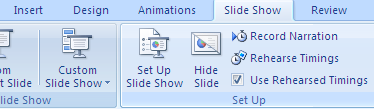
The first method involves taking a completed presentation and uploading it to a site called AuthorStream. You have to sign up to use the service, but it’s free and definitely worth it. It’s not as popular as Slideshare, but it’s still good. AuthorStream will also keep any audio recordings that you may have in the presentation. You can record audio by going to the Slide Show tab and clicking on Record Narration.

record audio
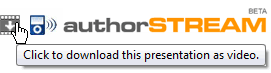
Once you have it uploaded, you will see links to download the file as a video in MP4 format. Along with that, you can directly upload the Powerpoint video to YouTubeor download a video podcast version of your presentation into iTunes so that it can be synced to your iPod!

authorstream
Image Source: DigitalInspiration
This is a very simple and easy way to get your presentation into a video format. The second method involves using a free screen recording program to capture the entire presentation in AVI video format. After that, you can use another program to convert the AVI to a DVD ISO image and then burn the image to DVD.
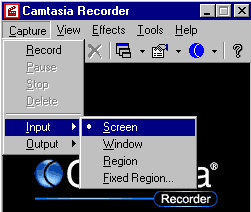
Firstly, check out this tutorial on how to use Camtasia to record the Powerpoint presentation to AVI format. Don’t worry about Step 2 or Step 3 because that software is no longer available.

camtasia
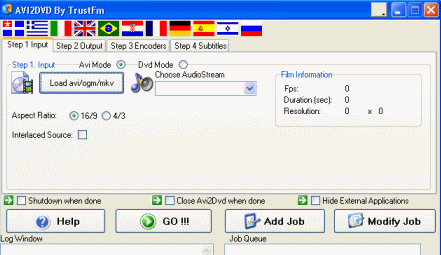
Once you have captured your presentation and saved it to AVI format, you canAvi2DVD to convert it and then use DVD Decrypter to burn the final DVD!

avi2dvd
AfterDawn has an excellent tutorial on the exact steps you need to take to convert your AVI to DVD and then burn it.

Convert Powerpoint to Flash

If the conversion steps for DVD seemed a bit much, you’ll be happy about converting to Flash. Most of the time people convert to Flash so that they can embed their presentations into a web page. Luckily, there are already many sites that convert Powerpoint presentations to Flash and even give you the embed code, so you don’t have to host the presentation off your servers.
You can check out SlideshareSplashCastAuthorStreamScribdZoho Show, and SlideAware for getting flash versions of your Powerpoint presentation. Digital Inspiration wrote up a post with all of the Powerpoint media players from each of the above sites. See which one you like the best and then use it to create your own Powerpoint media player. You can then embed it into your blog or web site.
If you want to convert the Powerpoint presentation to Flash and have it saved on your local computer, you need to use a desktop application instead of the web sites above.
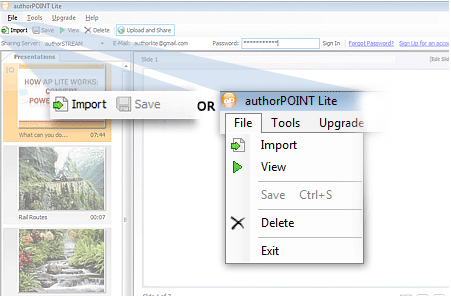
authorPoint Lite is a free desktop software that provides fast, accurate and high quality conversions of PowerPoint (.ppt, .pps, .pptx and .ppsx) to Flash (.swf). Once converted, your Flash presentation has the same impact as your PowerPoint presentation retaining its effects, sound, animation, and rehearsed timings etc; plus you have all the benefits of a Flash file like reduced size, secure content, and easy distribution on the Web.

authorpointlite

Convert Powerpoint to PDF

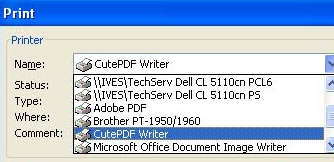
The only way I could figure out to convert a Powerpoint presentation into PDF for free was to use CutePDF Writer software and print out all of the slides. CutePDF Writer allows you to create PDFs for anything that you can print.
You’ll notice two links on the left side, one for free download and one for free converter, you need to download both and install them. Now go to PowerPoint, open your presentation, choose Print, and choose CutePDF Writer from the drop down menu.

cutepdf write
That’s it! Hopefully, using the guides above you have been able to convert your Powerpoint presentation into the desired format! If not, post a comment and we’ll try to help you convert it! Enjoy!
You can also read up on other conversion posts, such as how to convert PDF to Word.

rip and convert DVD movies to almost all video and audio formats with high DVD ripping speed and great quality


Whether we want to rip a whole 4.5GB DVD or 20 second video clips taken from cellphones, ImTOO’s software provides a combo of conversion options so you can easily convert your movies or videos to almost any popular media format.
It’s easy to use interface also lets you perform more advanced tasks like down mixing a 5.1 source to a 2 channel stereo output.
Below are the steps to rip an entire DVD using ImTOO:
1. locate the DVD folder using the DVD button
2. Choose an output format from the “profile” choices. Choose MP4 if you want to convert for MP4 devices like PSP and iPod, choose AVI on the other hand if you want to convert for AVI capable devices like Archos.
3. Choose the audio source. Usually you will choose the audio track that contains the regular dubbing of the movie. The other options available on the DVD could be an audio track of other languages or the audio comments from the movieproducers.
clip_image002
4. Set the output movie’s video size,, audio bit rate and codec. Usually I set this to automatic but you can choose to resize to a smaller video size if you only need to play it on small screens. I prefer not to go down the 128 bit rate and 48000 sample rate values since lower settings would mean a lower sound quality than a common MP3 file.
5. Click the red button to begin ripping
Usually the length of the movie is the about the same amount of time to rip a movie. For example, if your movie 1.5 hours long, you will wait up to 1.5 hours to rip the entire film. I learned this a decade ago when I was ripping VCDs, I think it is still true for DVDs as I have experienced with ImTOO and other ripping tools like Nero Recode.


How to Convert videos into iPhone format


So I’ve been using my iPhone a lot these days and one thing that is a must for me is to sync up all my movies, TV shows, and videos onto my phone so that I can watch them on the go, rather than streaming the videos to my xBox.
Though it’s great for watching stuff at home on my TV, it sucks that I cannot carry around my movies wherever I go! But alas, there are many tools out there that let you convert your videos into the proper iPhone format.
HandBrake is a free and very nice tool to convert most video formats, including AVI, MKV and more into the required MP4 or M4V formats that the iPhone supports.
convert video to iphone format
So how do you use this program? For newbies, it can look a bit intimidating, but it’s really pretty straightforward once you do it a few times.
First, open the program and click the Source button at the top left and then chooseVideo File or DVD/Video_TS Folder if you want to convert an already ripped DVD into the iPhone format.
handbrake iphone
Select the video file and the path will populate into the Source text box. Now you need to click on the Browse button next in the Destination section. Choose your output path and type a name for the converted file, then click Save. Don’t worry about the file type at this point.
convert video to mp4
By default, the preset is set to Basic. Now click on the iPhone & iPod Touch preset in the right hand column. Once you do this, the file extension will change to m4v.
add video to iphone
At the bottom, you’ll see a bunch of tabs where you can further customize the settings for the output video. For me, I’ve never had to change anything there, but if you want to, you can.
video settings
Now to convert your video, just click on the Add to Queue button and a new window will pop up with the summary in a list format. If you have a bunch of videos to convert at once, just go back to the main screen and repeat all the steps again like choosing Source, etc.
Click Add to Queue again and the second video will be added to the queue list and so on. Just remember to change the name of the output file since that does not happen automatically!
encode iphone format
Finally, click on the green arrow Encode button and that’s it! A few commandwindows will pop up and all that, but after a little while, your newly converted video will be ready to sync onto your iPhone! Depending on the size, it can take anywhere from 20 minutes to several hours to convert a video. Enjoy!